2.1.1. Deploy Web Applications
You will create a playbook to deploy applications to previously provisioned webservers.
As a reminder, the following assumes that you are using RDP to access the Jump
host provided for this lab, that you are SSH’d into the “Ansible”
host and that the current working directory in that session is /root/f5-ansible-workshop.
Examine ansible inventory file
Ansible works against multiple systems in your infrastructure at the same time.
It does this by selecting portions of systems listed in Ansible’s inventory.
For this lab, the ansible inventory file is inventory/hosts.
Edit ansible inventory file and ensure it has the entries listed below. This lab is written for use with nano editor but you may substitute with vi or vim.
- Type
nano inventory/hostsand modify if necessary - Type the following into the
inventory/hostsfile
[bigips]
10.1.1.245

[appservers]
10.1.20.17 ansible_user=root
10.1.20.20 ansible_user=root

[webservers]
10.1.20.15 ansible_user=root
10.1.20.16 ansible_user=root
- Type
ctrl xthen pressenterto save file.
- Type
Create Playbook to deploy web application
Create a playbook
newapp.yaml.- Type
nano playbooks/newapp.yaml - Type the following into the
playbooks/newapp.yamlfile.
---

- name: Deploy newapp
  hosts: webservers
  vars:
    valid_certs: no

  tasks:
    - name: deploy to server5
      copy:
        src: ../files/f5-hello-world-develop/customizations/blue.css
        dest: /var/www/server/5/css/custom.css
      tags: serv5

    - name: deploy to server6
      copy:
        src: ../files/f5-hello-world-develop/customizations/green.css
        dest: /var/www/server/6/css/custom.css
      tags: serv6
- Type
ctrl xand save file.
- Type
Run this playbook to copy files from ansible host to destination webservers.
- Type
ansible-playbook playbooks/newapp.yaml
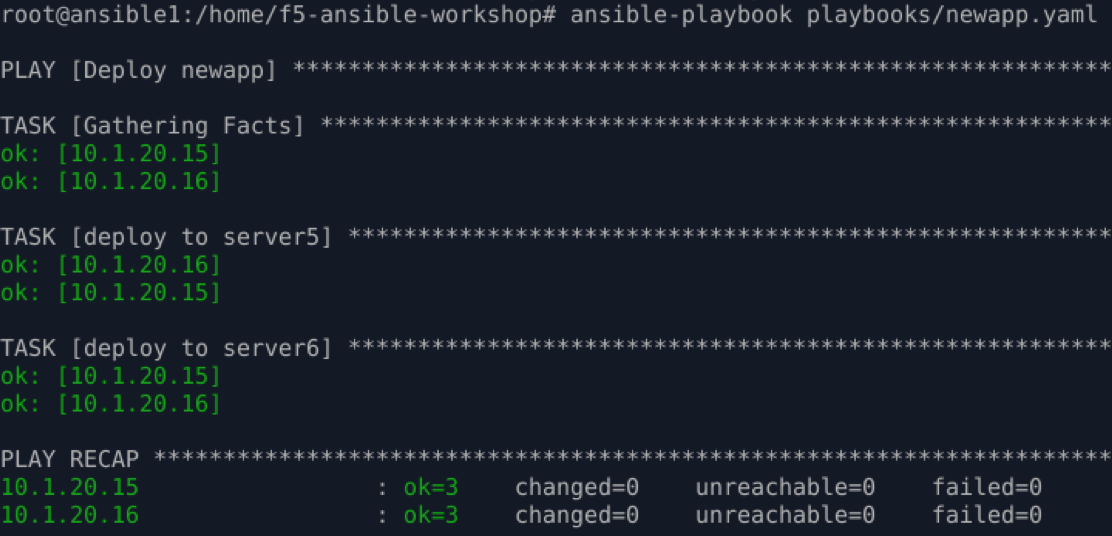
If successful, you should see similar results
- Type
Verify results by browsing to websites.
- Type
curl http://10.1.20.15 --silent | grep SERVER_NAME - Type
curl http://10.1.20.16 --silent | grep SERVER_NAME

Note
The
hosts: webserversreferenced in the playbook are defined in theinventory/hostsfile. These webservers are on an internal vlan and not typically accessible by external users. Upon successful deployment of the applications, app owners typically submit request for NetOps to configure app services such as dns, load balancing and firewall, before these applications can be accessed externally.- Type