1. Getting Started
The purpose of this guide is to provide a sampling of hands-on exercises to better understand deployment of BIG-IP using Ansible.
1.1. Lab Topology
Each student will have a BIG-IP VE environment with IP addressing as below:
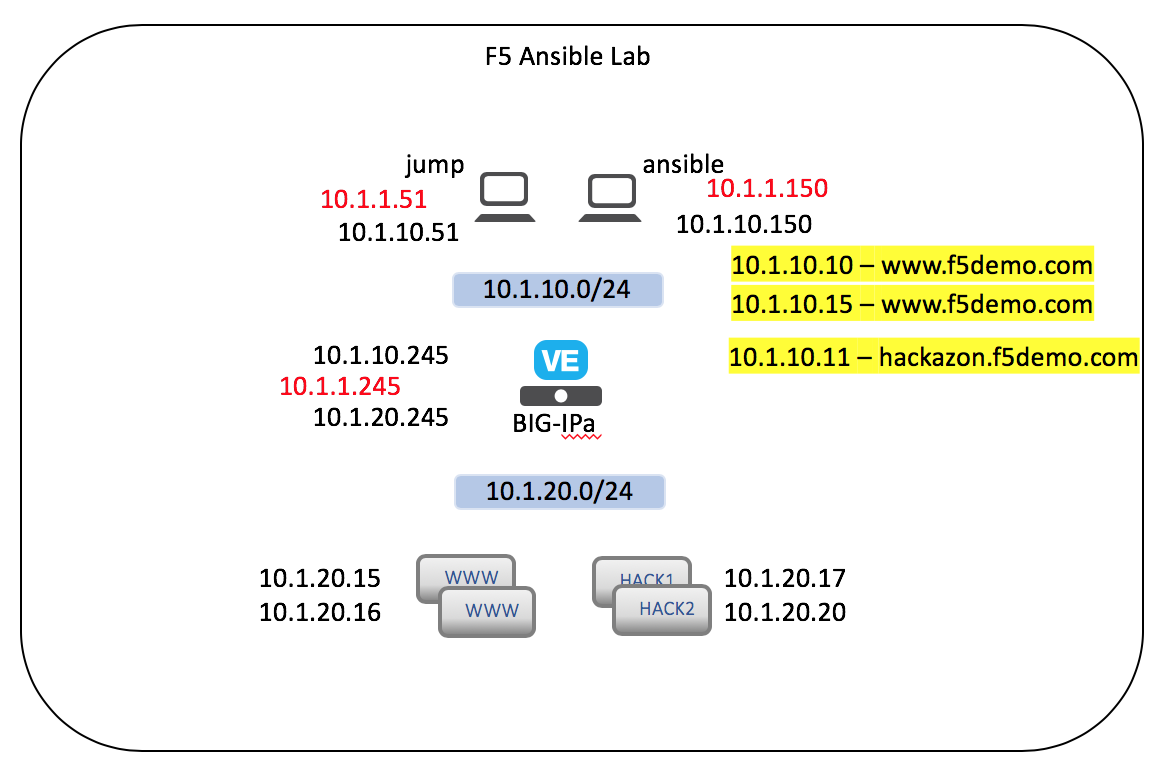
| Component | VLAN/IP Address(es) | Credentials |
|---|---|---|
| Jump Host |
|
|
| Ansible Host |
|
|
| BIG-IP01 |
|
|
| Lamp Host |
|
|
1.2. Connect to lab
Access f5 training portal
- Open a browser and go to student portal site as provided by instructor.
Connect to Jump server
Look for the xubuntu-jumpbox-vxx. You will use the xubuntu jumpbox for all the labs. (see below)
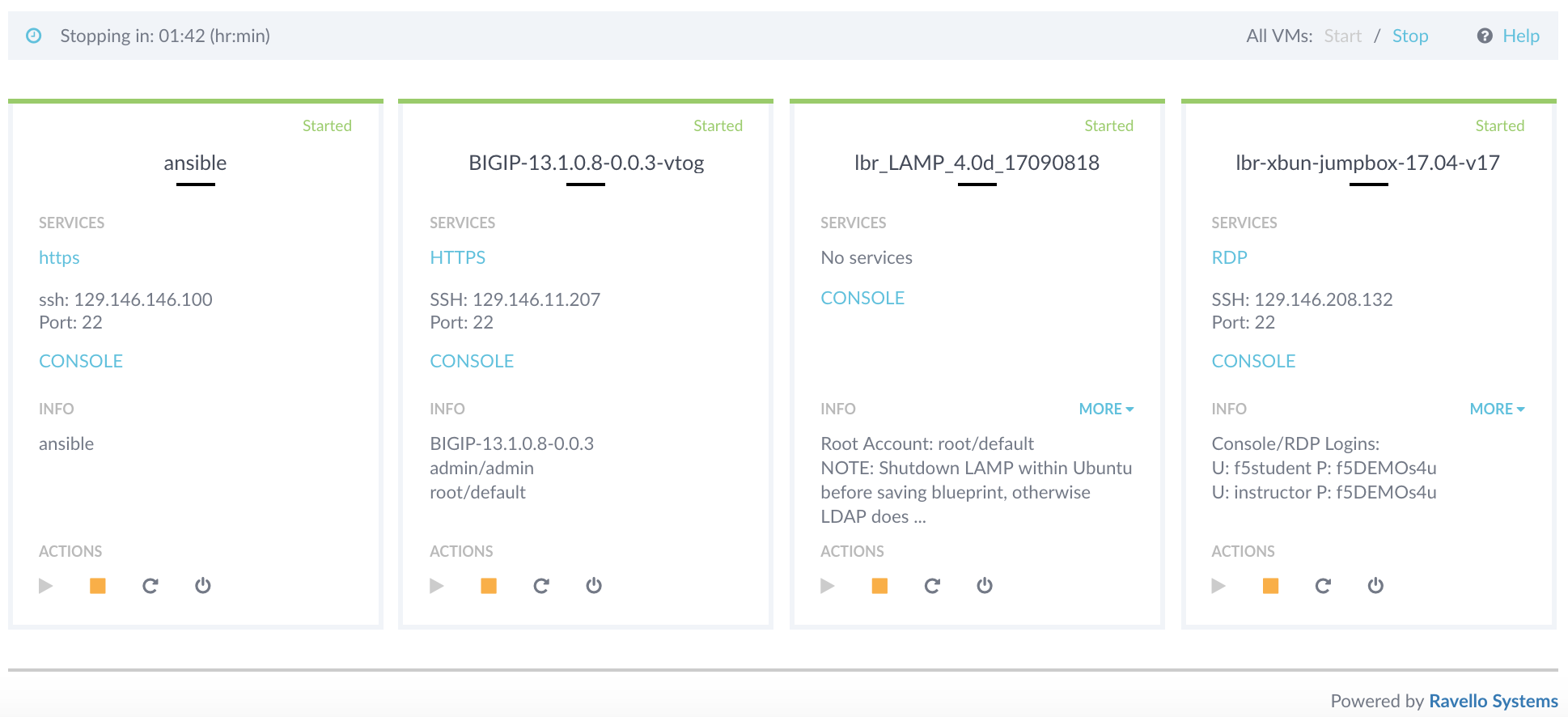
You can click on RDP to RDP to the Xubuntu jumpbox or you can select the CONSOLE link and access the jumpbox via your browser. The CONSOLE link requires you turn off pop-up blockers.
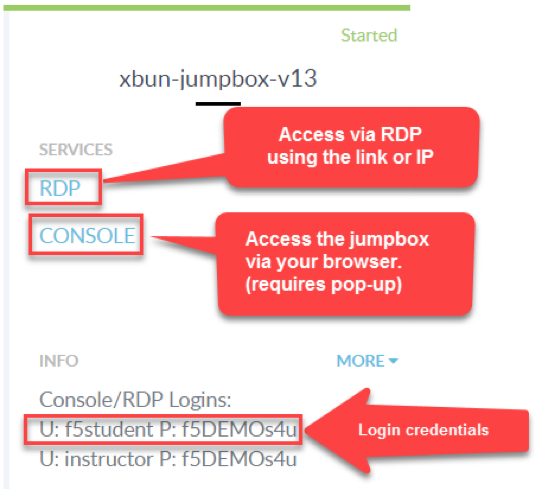
Connect to BIG-IP admin gui
- From Jumpbox, open BIG-IP Admin GUI
- Open Chrome browser found on launchpad at bottom of screen
- Click on
bigip01on favorites bar - Login with username:
adminand password:admin
Connecting to ansible host.
- From Jumpbox, SSH to Ansible host
- Open Terminal Emulator Window found on launchpad at bottom of screen
- Type
ssh root@10.1.1.150 - Type
yeswhen asked “Are you sure…” - If prompted, password is password
- Change directory to access lab directory folder
- type
cd f5-ansible-workshopto change directory to location of the ansible lab. - type
pwdto confirm path is /root/f5-ansible-workshop.
- type