2.2.4. Simulate Blue Green Updates
This demonstrates a very simple example to provide continuous updates.
Run this playbook to offline a pool member
10.1.20.17.- Type
ansible-playbook playbooks/offline.yaml -e @creds.yaml --ask-vault-pass -e pool="hack11_pl" -e pmhost="10.1.20.17" -e pmport="80"
- Type
Verify if pool member 10.1.20.17 is
forced offline- Select Local Traffic -> Pools -> Pool List -> hack11_pl -> Members

Run this playbook to update app on
10.1.20.17.- Type
ansible-playbook playbooks/blue.yaml --tags 17blue
- Type
Run this playbook enable pool member
10.1.20.17.- Type
ansible-playbook playbooks/enable.yaml -e @creds.yaml --ask-vault-pass -e pool="hack11_pl" -e pmhost="10.1.20.17" -e pmport="80"
- Type
Verify if pool member 10.1.20.17 is
enabled- Select Local Traffic -> Pools -> Pool List -> hack11_pl -> Members
Run this playbook to offline a pool member
10.1.20.20.- Type
ansible-playbook playbooks/offline.yaml -e @creds.yaml --ask-vault-pass -e pool="hack11_pl" -e pmhost="10.1.20.20" -e pmport="80"
- Type
Verify if pool member 10.1.20.20 is
forced offline- Select Local Traffic -> Pools -> Pool List -> hack11_pl -> Members
Run this playbook to update app on
10.1.20.20.- Type
ansible-playbook playbooks/blue.yaml --tags 20blue
- Type
Run this playbook enable pool member
10.1.20.20.- Type
ansible-playbook playbooks/enable.yaml -e @creds.yaml --ask-vault-pass -e pool="hack11_pl" -e pmhost="10.1.20.20" -e pmport="80"
- Type
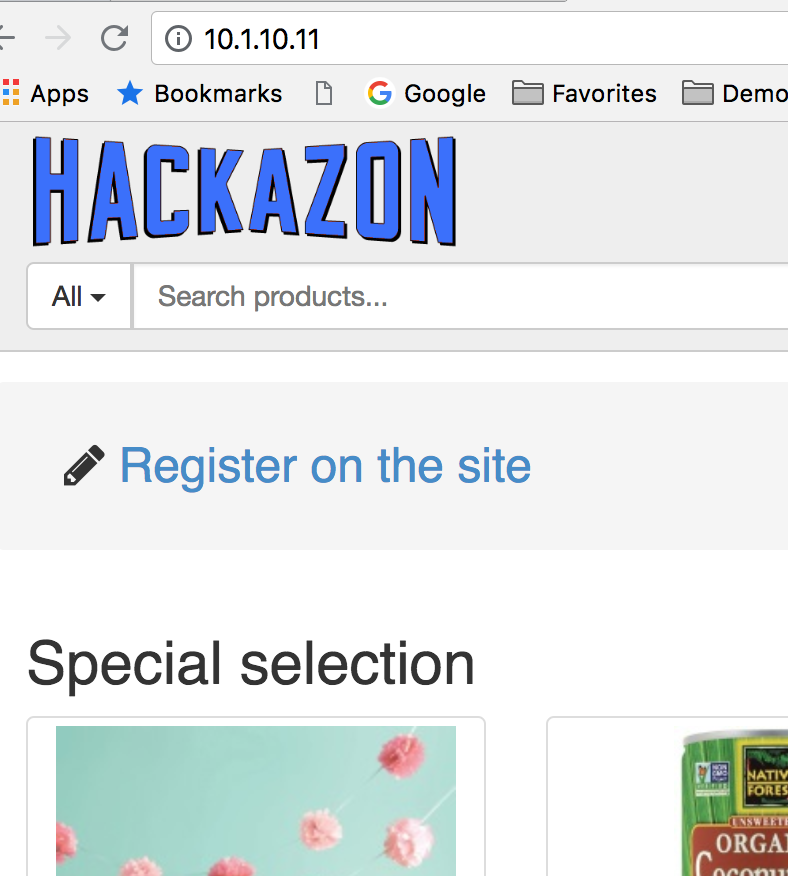
Browse to
https://10.1.10.11to test Application. Hackazon image should be blue.